 HIXOR
Stop Reusing Passwords — The First Step
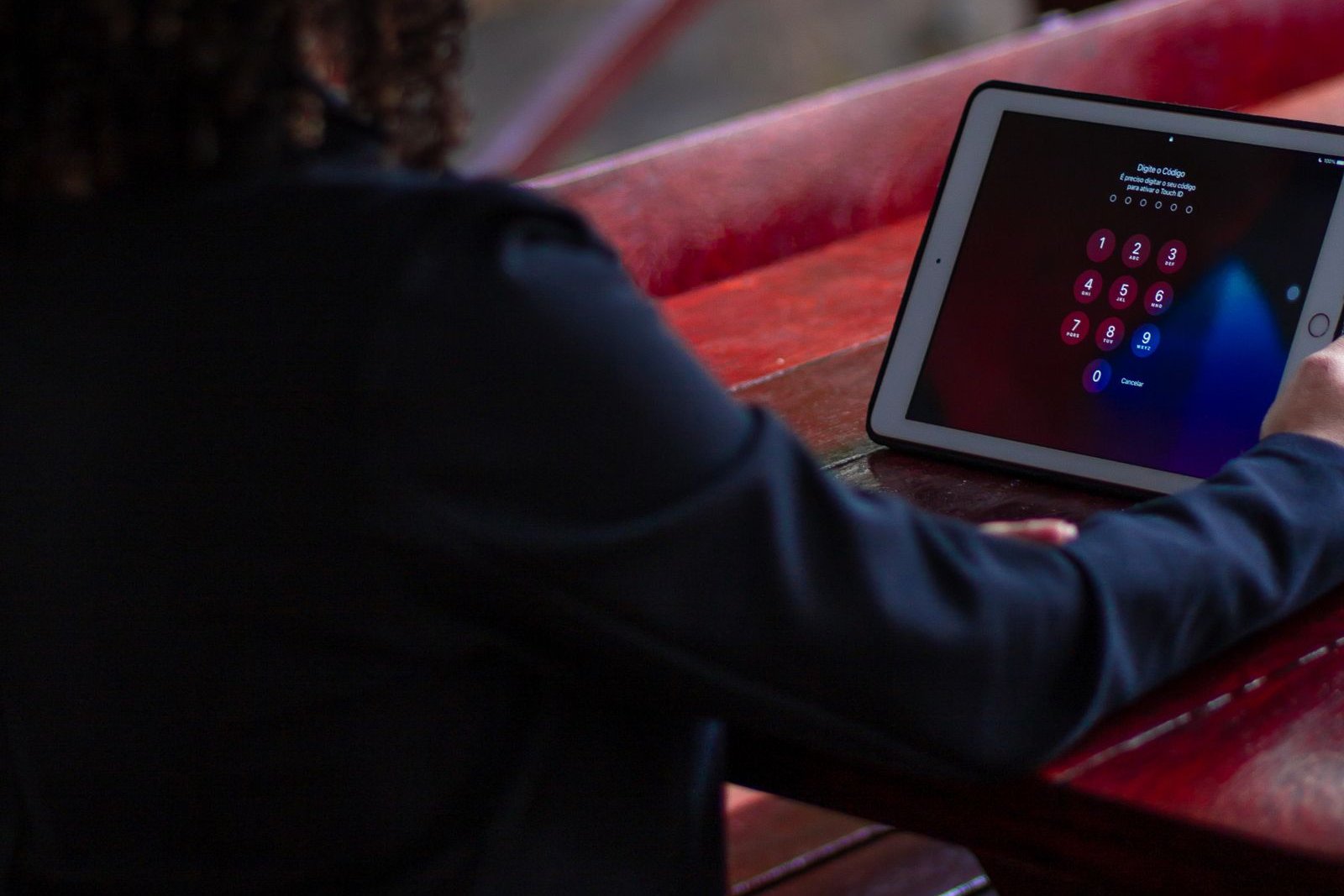
Using the same password on every service is one of the easiest weaknesses to fix — and one of the most effective. This guide explains why reuse is dangerous and how to stop, step by step, based on official guidance from IPA and JPCERT/CC (Japan).
Why reuse is dangerous: password-list attacks
When a service suffers a data breach, lists of email addresses and passwords can end up in attackers' hands. Attackers use automated programs to try those combinations on many other services, one after another. This is called a password-list attack (credential stuffing).
If you reuse passwords, one breach can cascade into your shopping, social media, email, and work accounts. If every service has a different password, a leak at one service cannot open the others. IPA and JPCERT/CC have run a joint campaign for years: "STOP!! Password reuse!!"
Step 1: Change the three most important ones first
You do not have to change everything at once. Start where the damage would be largest:
- Your email account (the address to which password-reset mail is sent for most services — in effect, the key to the front door)
- Money-related accounts (banking, payments, shopping, points)
- Social media and work accounts (entry points for impersonation and further leaks)
Each new password must be unique to that service — not a reused one.
Step 2: How to make a strong password
IPA recommends passwords that are as long as possible, complex, and never reused. JPCERT/CC recommends 12 characters or more. A passphrase — several words you like, combined — is a practical way to get both length and memorability. The U.S. National Institute of Standards and Technology (NIST), in SP 800-63B, likewise favors long, memorable passphrases.
- Make it long (12 characters or more as a guide)
- Mix uppercase and lowercase letters, numbers, and symbols
- Avoid names, birthdays, and guessable sequences such as "123456" or "password"
- Always use a different password for each service
Step 3: Solve the "too many to remember" problem
Unique, long passwords for every service are not meant to be memorized. IPA and JPCERT/CC suggest these management methods:
- Use a password manager (you only memorize one master password)
- Store them in a password-protected file
- If you use paper notes, write the ID and the password on separate sheets and store them so others cannot understand them
Your browser's built-in password saving can also help you avoid reuse. Any of these methods is far safer than "the same one everywhere".
Step 4: Add multi-factor authentication or passkeys
Turn on multi-factor authentication (two-step verification) so that a leaked password alone is not enough to sign in. Where a service offers passkeys, they are another strong option. Make sure to set this up, in particular, for the three account types in Step 1.
If you notice an unauthorized login
- If you can still sign in, change the password immediately
- Check the registered information (email address, phone number); delete anything that is not yours
- Change the password on every other service where you used the same one
- Use the login history / login notification features to check for access you do not recognize
- If multi-factor authentication is not set up yet, set it up now
Summary: today's checklist
- Changed the passwords for email, money, and social/work accounts — each one different
- Each new password is 12+ characters and hard to guess
- Chose a management method (password manager / protected file / separated paper notes)
- Enabled multi-factor authentication or a passkey on important accounts
Once your own accounts are done, apply the same ideas to your family and workplace accounts. For workplace accounts, HIXOR also offers a service that sets up account protection as a package (the Account Protection Setup). You can also start with the free self-check below to review where you stand.
Official sources
- IPA, 'Damage from unauthorized logins to Internet services is increasing' (Anshin consultation column)
- IPA, 'Unauthorized login countermeasures' feature page
- IPA & JPCERT/CC, 'STOP!! Password reuse!!' — call to prevent unauthorized logins via password-list attacks
- JPCERT/CC, 'STOP! Password reuse!' campaign page (conditions for a safe password: 12 characters or more recommended)
- NIST SP 800-63B, Digital Identity Guidelines — Authentication and Authenticator Management (guidance on passphrases and length)
Review your current posture with 25 questions. Runs in your browser only.